
스프링 STOMP 뜯어보기
스프링 웹 소켓 가이드 따라가기
본 글은 스프링 웹 소켓 알아보기 포스팅 이후의 포스팅입니다.
이전에 웹 소켓과 STOMP에 대하여 학습하였다.
이론을 배웠으면 코드로 적용하는 시간이 필요하다!
시작으로 실시간 채팅을 구현하기 전, 스프링 공식문서 가이드에서 제공하는 템플릿을 실습해보며 다시한번 코드 작성과 구조에 대하여 파악해보려고 한다.
공식문서 가이드 링크
의존성 추가
필자는 자바 21 버전으로 프로젝트를 만들었다. 아마 버전이 달라도 큰 차이는 없을것이다.
dependencies {
    implementation 'org.springframework.boot:spring-boot-starter-data-redis'
    implementation 'org.springframework.boot:spring-boot-starter-thymeleaf'
    implementation 'org.springframework.boot:spring-boot-starter-web'
    implementation 'org.springframework.boot:spring-boot-starter-websocket'
    compileOnly 'org.projectlombok:lombok'
    developmentOnly 'org.springframework.boot:spring-boot-devtools'
    annotationProcessor 'org.projectlombok:lombok'
    testImplementation 'org.springframework.boot:spring-boot-starter-test'
    testRuntimeOnly 'org.junit.platform:junit-platform-launcher'
}
- 내장 톰캣 사용을 위한
starter-web - 웹 소켓 및 STOMP 사용을 위한
starter-websocket - 추후 채팅방 대기열 구현을 위한
starter-redis - html을 서버사이드로 내리기 위한
starter-thymeleaf
STOMP 설정
이제 소켓통신을 위한 기반을 마련해야한다.
스프링에서는 간단하게 소켓 설정클래스를 컴포넌트로 등록해주면 된다.
@Configuration
@EnableWebSocketMessageBroker
public class WebSocketConfig implements WebSocketMessageBrokerConfigurer {

    @Override
    public void registerStompEndpoints(StompEndpointRegistry registry) {
        registry.addEndpoint("/livechat").withSockJS();
    }

    @Override
    public void configureMessageBroker(MessageBrokerRegistry registry) {
        registry.enableSimpleBroker("/topic", "/queue");
        registry.setApplicationDestinationPrefixes("/app");
    }
}
@EnableWebSocketMessageBroker를 통해 WebSocket 메시지 처리 및 STOMP지원을 활성화한다.- 이제 애플리케이션은 연결된 클라이언트에 대한 STOMP브로커가 된다.
registerStompEndpointsaddEndpoint메서드로 클라이언트가 웹 소켓 핸드셰이크를 할 경로를 제공한다.- 즉, 클라이언트는
ws://localhost:8080/livechat의 경로로 요청을 보내면 웹 소켓 연결이 활성화 된다.
configureMessageBroker- 앞선 포스팅에서 살펴봤듯
clientInboundChannel에서 메시지는 브로커로 직접 라우팅, 혹은 컨트롤러의@MessageMapping메서드로 라우팅될 수 있다. - 여기서는
/topic과/queue경로는 브로커를 향한 경로이고/app은@MessageMapping메서드의 접두사가 된다.
- 앞선 포스팅에서 살펴봤듯
시작
우리가 만들 애플리케이션은 아래와 같다.
이름을 입력하고 서버로 요청하면 서버에서 인사말을 붙여 반환하는 애플리케이션이다.
여기서 중요한점은 소켓을 통한 통신이기 때문에 요청당 HTTP요청이 생성되지 않고 연결을 계속 유지한다는 점이다.
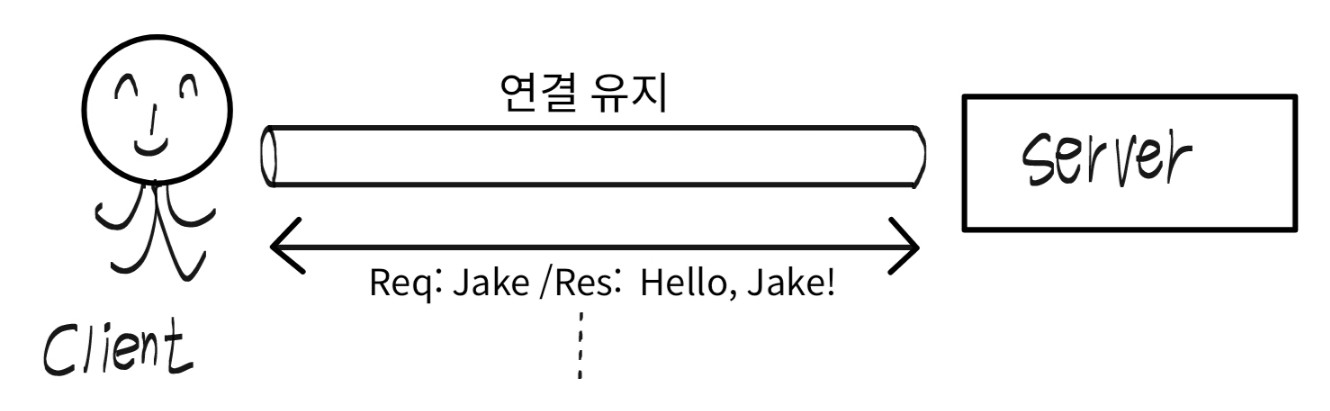
STOMP에 대한 설정을 위에서 마쳤다.
서버에 이름이 요청으로 가고, 웹에는 인사말이 응답으로 반환되므로 간단한 DTO를 생성하자.
@Data
public class HelloMessage {
    private String name;
}

@Data
public class Greeting {
    private String content;

    public Greeting(String content) {
        this.content = content;
    }
}
이제 컨트롤러를 작성해보자.
@Controller
public class GreetingController {

    @MessageMapping("/hello")
    @SendTo("/topic/greetings")
    public Greeting greeting(HelloMessage message) throws Exception {
        return new Greeting("Hello, " + HtmlUtils.htmlEscape(message.getName()) + "!");
    }
}
/app접두사로 인해@MessageMapping메서드로 라우팅된다.- 접두사 제거 이후
/hello부분이@MessageMapping("/hello")에 매핑된다. @SendTo는 메서드의 반환값을 특정 메시지 브로커 경로로 발행하는데 사용된다.- 이 경우, 반환된
Greeting객체는 STOMP메시지로 변환되어/topic/greetings경로를 구독하고 있는 모든 클라이언트에게 브로드캐스트 된다.
- 이 경우, 반환된
지금까지의 흐름을 정리해보자.
- 클라이언트가
/app/hello로 메시지 전송 - 메시지는
@MessageMapping("/hello")가 선언된 메서드로 라우팅 - 메서드가 처리된 뒤 반환된 값은
@SendTo("/topic/greetings")로 지정된 경로로 발행 /topic/greetings를 구독 중인 모든 클라이언트가 이 메시지를 수신
이제 서버에서 구현할 일은 전부 마쳤다.
간단하게 html과 자바스크립트를 이용하여 클라이언트 코드를 구현해보자.
<!DOCTYPE html>
<html xmlns:th="http://www.thymeleaf.org">
<head>
    <script src="https://cdn.jsdelivr.net/npm/sockjs-client@1/dist/sockjs.min.js"></script>
    <script src="https://cdn.jsdelivr.net/npm/@stomp/stompjs@7.0.0/bundles/stomp.umd.min.js"></script>
    <title>Greeting Chat</title>
    <script th:src="@{/app.js}"></script>
</head>
<body>
<div class="chat-container">
    <header>
        <h1>Greeting Chat</h1>
    </header>
    <main>
        <div id="chat-box" class="chat-box">
            <!-- 채팅 메시지가 여기 표시됨 -->
        </div>
    </main>
    <footer>
        <form id="chat-form">
            <input id="name-input" type="text" placeholder="Enter your name" autocomplete="off">
            <button type="button" onclick="sendName()" disabled>Send</button>
        </form>
    </footer>
</div>
</body>
</html>
소켓 연결을 설정할 자바스크립트코드는 아래와같다.
let stompClient = null;
let connected = false;

function connect() {
    const client = new StompJs.Client({
        webSocketFactory: () => new SockJS('/livechat'),
        onConnect: (frame) => {
            console.log('Connected: ' + frame);
            connected = true;
            document.querySelector('button').disabled = false;

            client.subscribe('/topic/greetings', (message) => {
                const chatBox = document.getElementById("chat-box");
                const response = JSON.parse(message.body);
                const newMessage = document.createElement("div");
                newMessage.textContent = response.content;
                chatBox.appendChild(newMessage);
            });
        },
        onDisconnect: () => {
            console.log('Disconnected!');
            connected = false;
            document.querySelector('button').disabled = true;
            setTimeout(() => {
                client.activate();
            }, 5000);
        },
        onStompError: (frame) => {
            console.error('Broker reported error: ' + frame.headers['message']);
            console.error('Additional details: ' + frame.body);
        }
    });

    stompClient = client;
    client.activate();
}

function sendName() {
    if (stompClient && connected) {
        const input = document.getElementById("name-input");
        const name = input.value;
        try {
            stompClient.publish({
                destination: "/app/hello",
                body: JSON.stringify({ 'name': name })
            });
            input.value = "";
        } catch (error) {
            console.error('Failed to send message:', error);
        }
    } else {
        console.log('Not connected to WebSocket server');
        alert('연결 중입니다. 잠시 후 다시 시도해주세요.');
    }
}

// 페이지 로드시 연결
window.onload = function() {
    document.querySelector('button').disabled = true;
    connect();
};

// 페이지 언로드시 연결 해제
window.onbeforeunload = function() {
    if (stompClient) {
        stompClient.deactivate();
    }
    connected = false;
};
실행화면
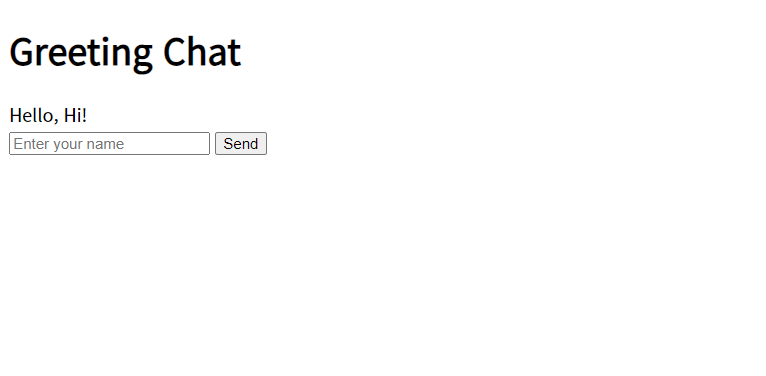 이름에 Hi를 입력하고 Send를 누르니 메시지가 정상적으로 도착하였다.
이번엔 똑같은 창 3개를 띄워보자. 모두 같은 경로를 구독하므로 똑같은 메시지가 모두에게 도착할 것으로 예상된다.
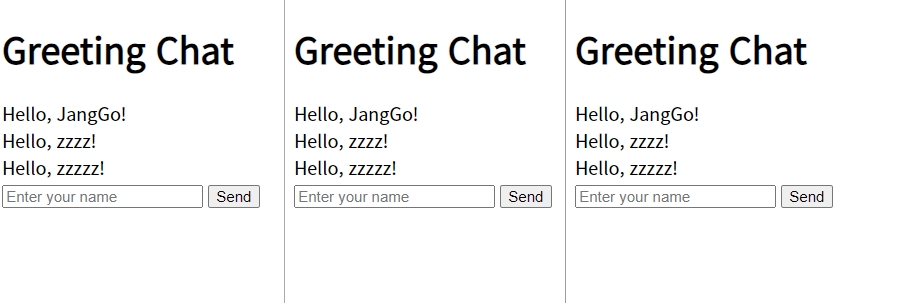 예상한대로 모두에게 브로드캐스트된다.